
Quick Start Guide
Connect smartphones with desktop mode

1. Connect one end of the short (30cm) USB-C cable to the USB-C port on the left side of NexDock as shown on diagram.
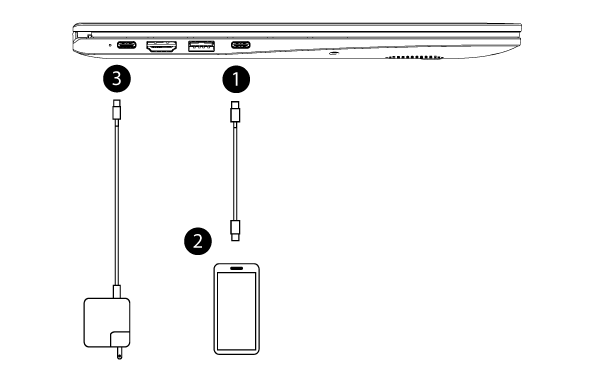

2. Plug the other end USB-C cable to your smartphone.

3. To charge your NexDock with the provided adapter and cable use the USB-C port closer to the display.
IMPORTANT NOTE: Smartphone would NOT work with NexDock if connected to USB-C charging port


4. To connect mouse, memory stick and other USB peripherals, you can use the USB-A ports on both sides.
Turn on NexDock by pressing power button on the keyboard and start using your smartphone as a laptop
Important Information for Samsung DeX Users
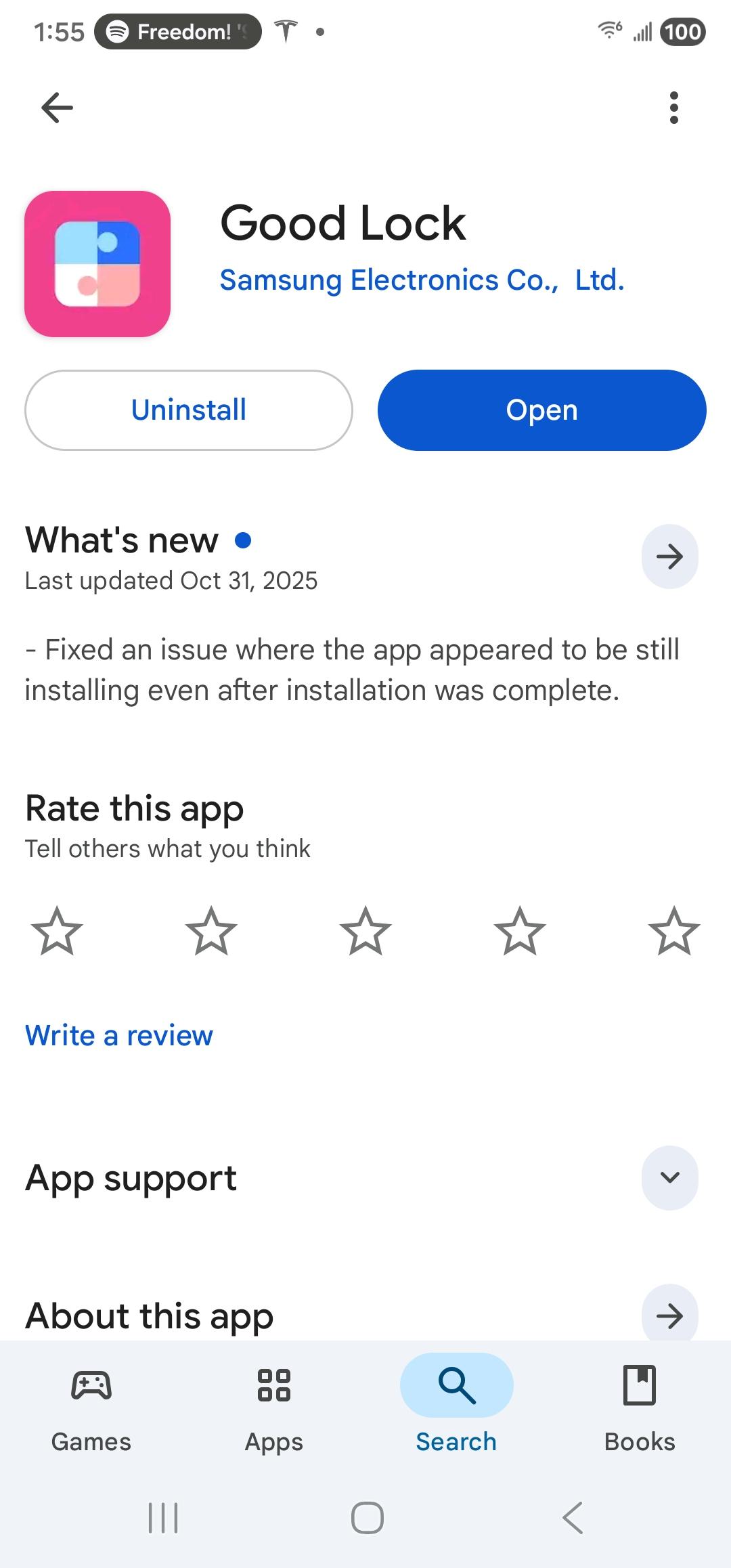
The new NexDock supports a 1920 × 1200 resolution. To enable Samsung DeX to recognize higher‑resolution external displays, you’ll need to install Samsung’s Good Lock app.
Follow the steps below to set it up.
Open Google Play and search for the “Good Lock” app from Samsung.
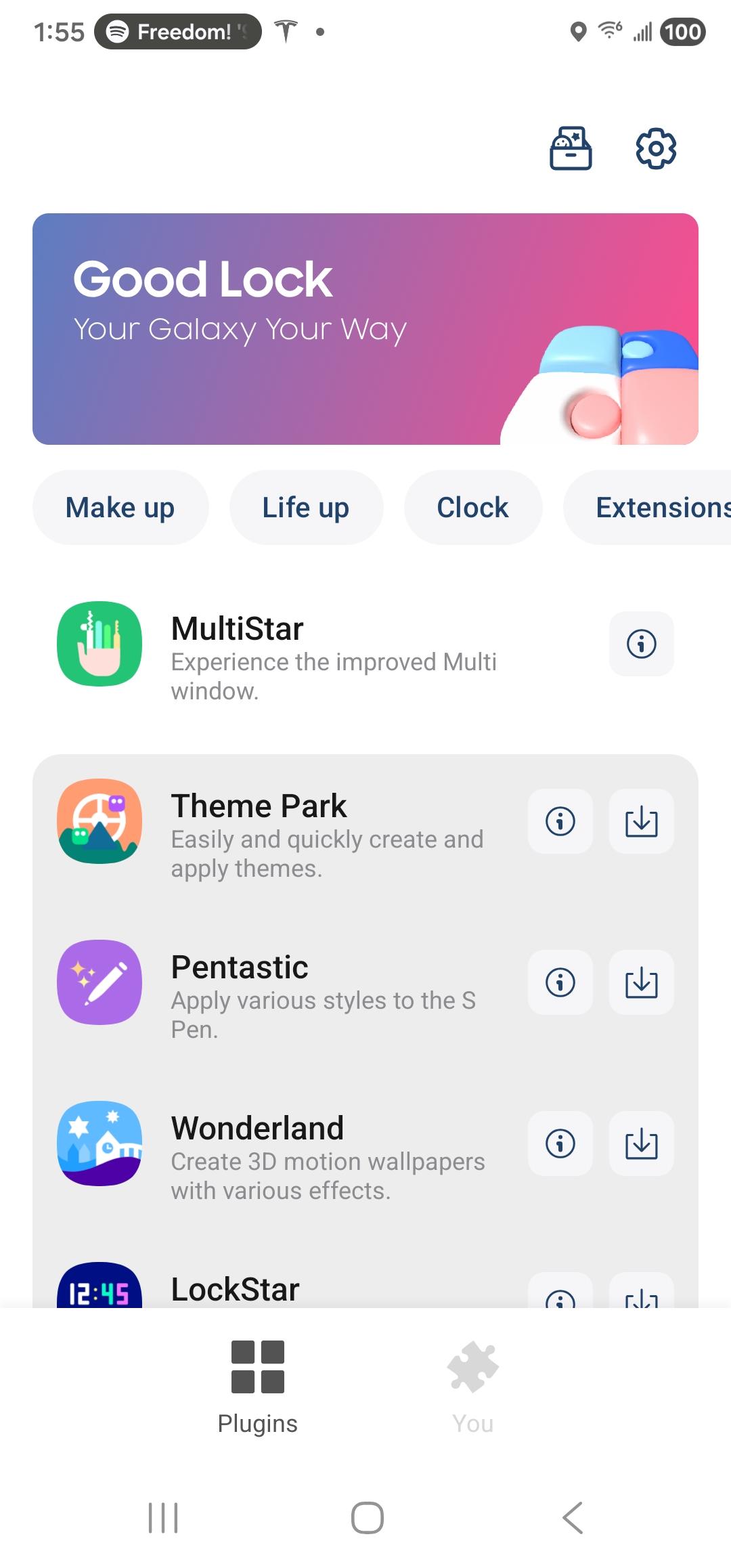
Once the Good Lock app is installed, open the MultiStar module.
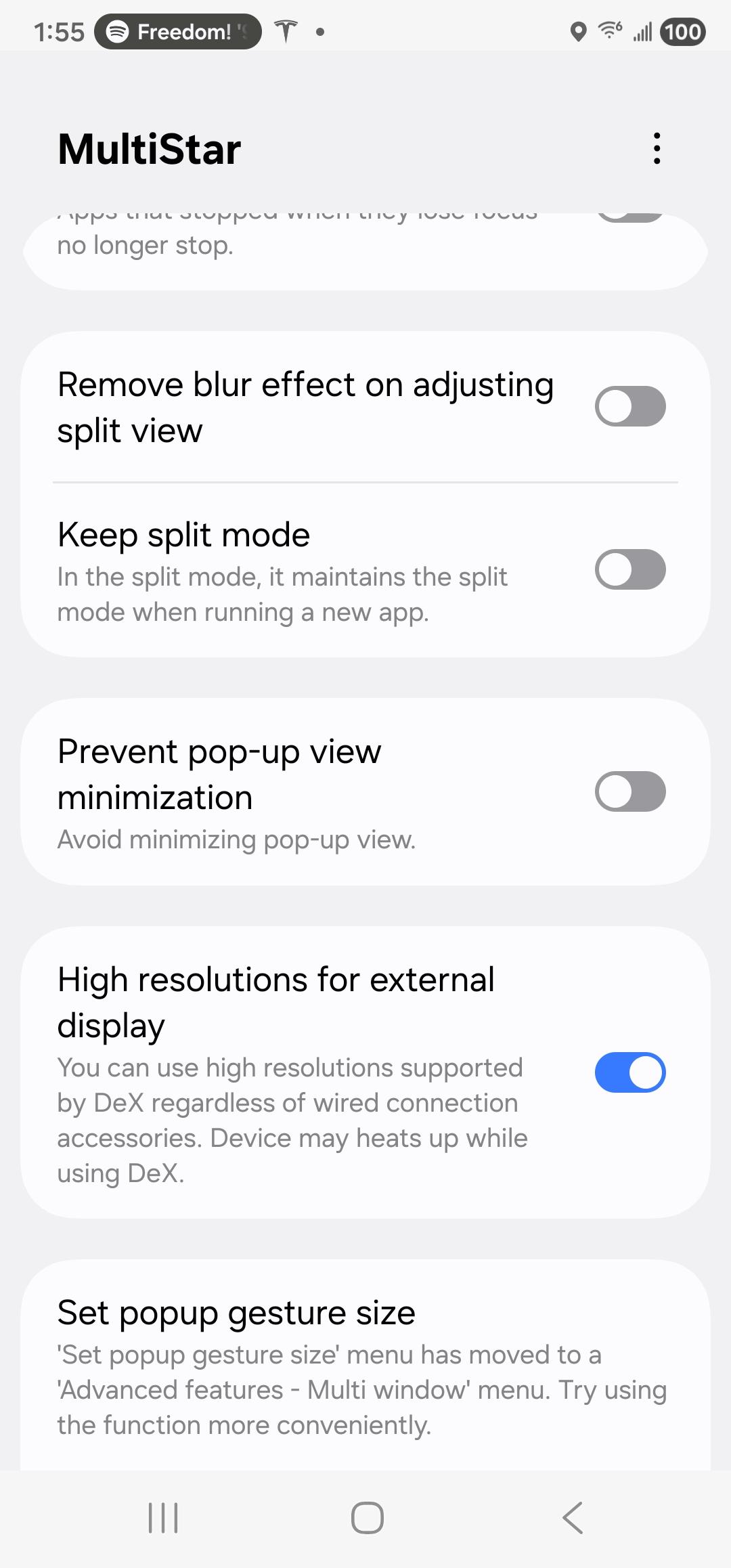
In the MultiStar module, enable the option “Higher Resolution for external display.”
Connect your phone to NexDock. Then go to Settings > Connected Devices > Samsung DeX and ensure the resolution is set to 1920 × 1200.
NOTE: You can also customize many other Samsung DeX options within these settings, such as adjusting touchpad speed or font size. For example, you can disable the NexDock keyboard if it appears on screen. To ensure audio works properly on NexDock, enable the option “Play sound on connected display.”
Troubleshooting
Smartphone Connection
– If you cannot connect your smartphone to NexDock, make sure your smartphone is connected to the correct USB-C input port with provided 30cm cable.
We provide USB-IF Certified (e-Marker) Gen2 USB C 3.1 Cable that supports 10Gbps data 4K Video and 100W power delivery with NexDock and you can use any other USB-C cable with similar specs.
– NexDock works only if your phone supports video output over USB-C port. Click here to find out if your smartphone is compatible
– Press the Power button on your smartphone to make sure that the screen is on.
– If you see your smartphone screen instead of the full screen of desktop mode user interface, you need to change the settings on your smartphone. Click on Settings and go to Device Connectivity> and select Desktop for secondary display.
– Check whether your device is in Maximum power saving mode, Safe mode, Emergency mode, or Kids mode. If your device is in any of those modes, disable the mode via Settings before connecting.
Sound
2.) You can change the default audio output (speaker) to NexDock as follows:
1.) On the Desktop Mode screen on NexDock select “Audio output Device” (the speaker icon ) on the panel at the bottom ot under settings.
2.) You can see and change the device that can currently output audio here.
Battery Charge Level
If your smartphone is connected to NexDock you can check the battery charge level of NexDock at anytime by pressing function key and battery icon on the keyboard or on OSD control panel.
If no device is connected, NexDock goes to sleep mode in 300 seconds.
Please note that the new battery is only able to achieve best performance after two or three full charge and discharge cycles.
If problem persists, open a new help desk ticket by logging in to My Account and clicking on “Help Desk>Submit New Ticket” link.