
Support
NexDock XL – PCBA or Display Replacement
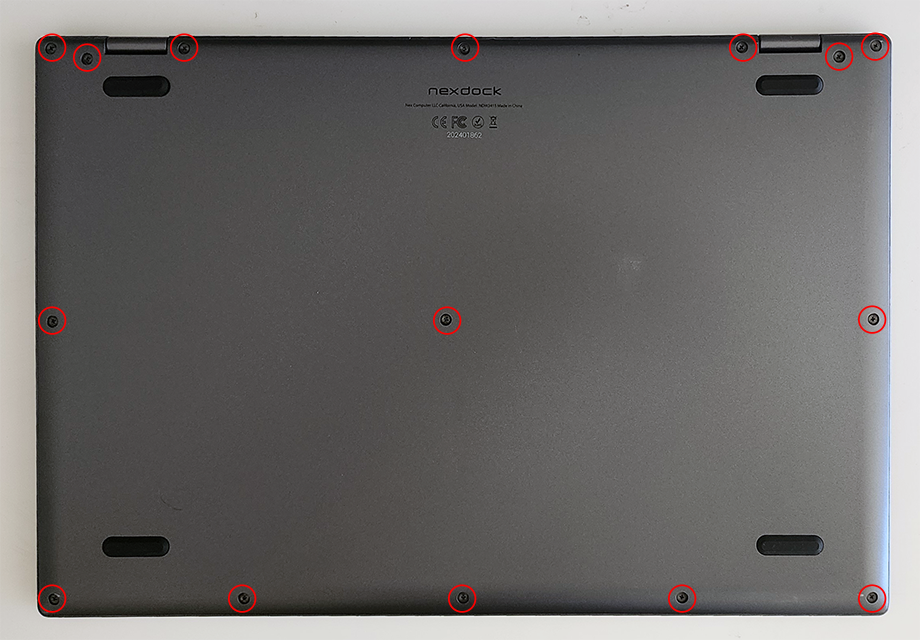
STEP 1
-
Remove the 14 screws securing the lower case to the upper case.
NOTE: Throughout this repair, keep track of each screw and make sure it goes back exactly where it came from to avoid damaging your device.
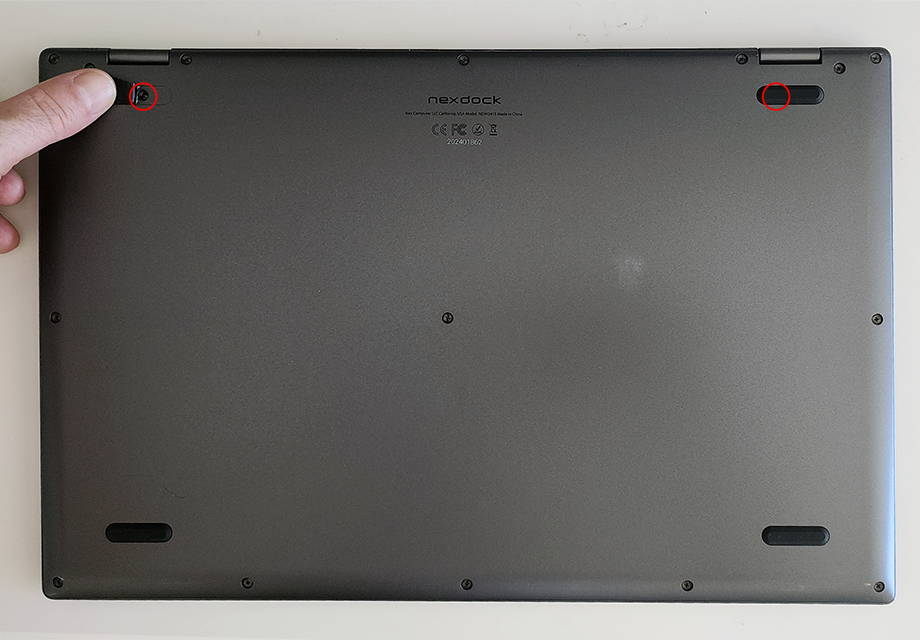
STEP 2
-
Remove 2 hidden screws located underneath the rubber grips at the back (closer to the hinge)
NOTE: You don’t need to completely remove the rubber feet for removal of the hidden screws (see the image)
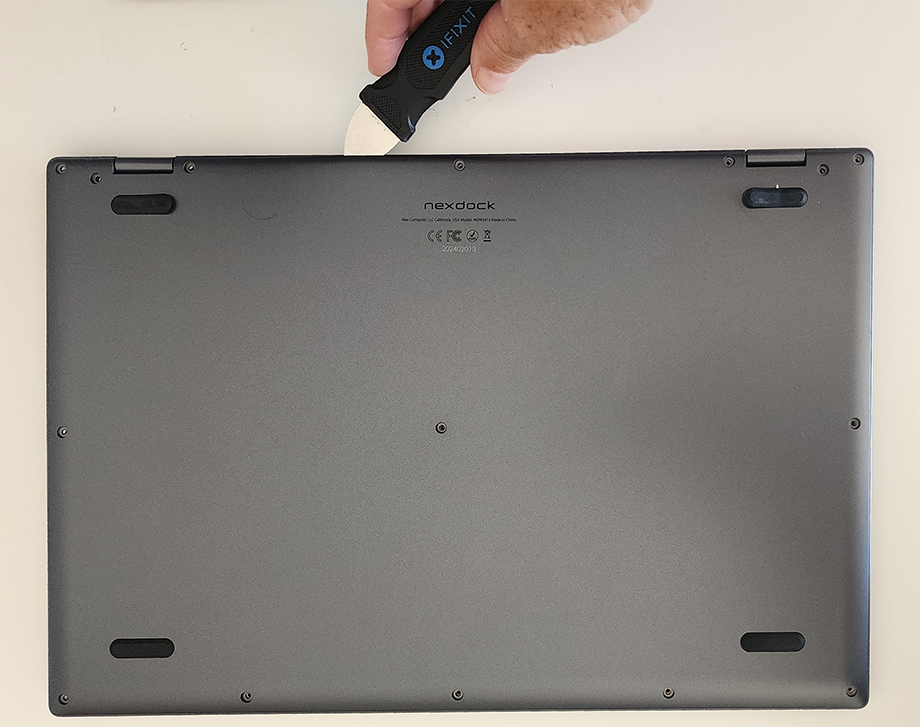
STEP 3
-
Use a Jimmy or any other pryer tool to gently pry between the keyboard and bottom case starting from the back edge.
Pry gently to pop open the plastic tabs holding the bottom case. A clicking noise will occur during this step
Continue prying, moving around all sides of the bottom panel until it is loose.
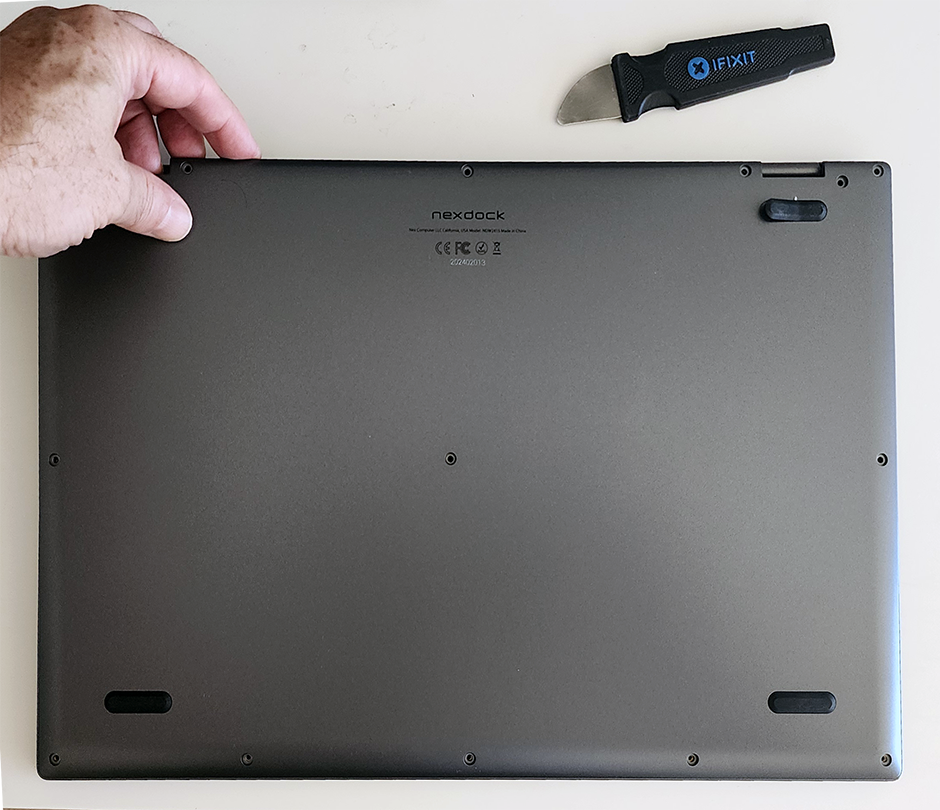
STEP 4
-
You can also continue prying with your fingers, moving around all sides of the bottom panel until it is loose.
STEP 5
-
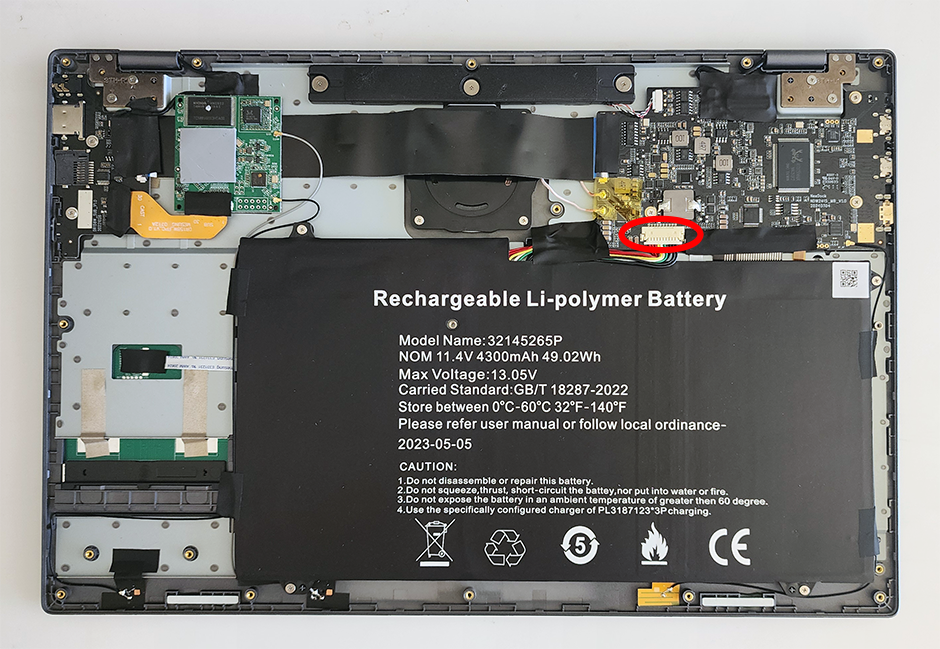
Locate the cable attaching the battery to the motherboard and gently unplug it.
NOTE: Carefully disconnect the cable parallel to the board, not at an angle. Otherwise, you could damage the port.
STEP 6 – REPLACING THE DISPLAY
NOTE: Skip to STEP 10 if you are not replacing the display.
-
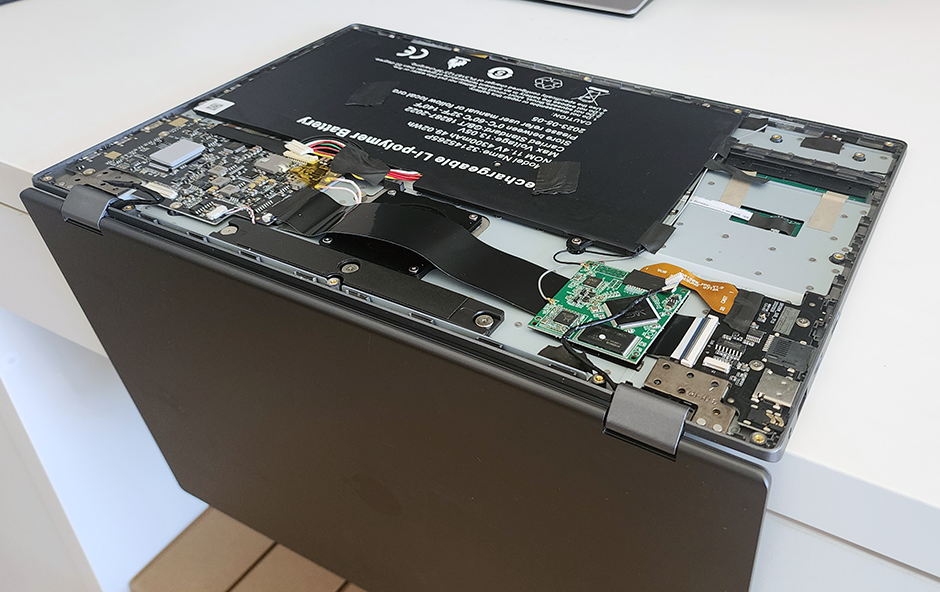
Open the display 90 degrees and place the device at the edge of the table as shown.
STEP 7 – REPLACING THE DISPLAY
-
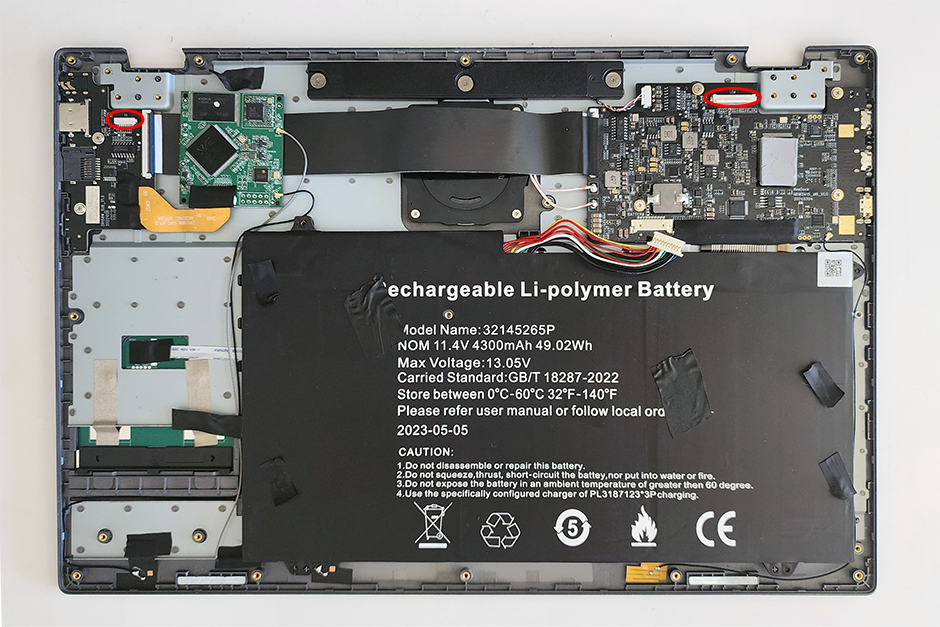
Locate the connectors attaching the display to the motherboard and remove the black tapes.
-
Remove the power cable connecting to the small PCBA.
STEP 8 – REPLACING THE DISPLAY
-
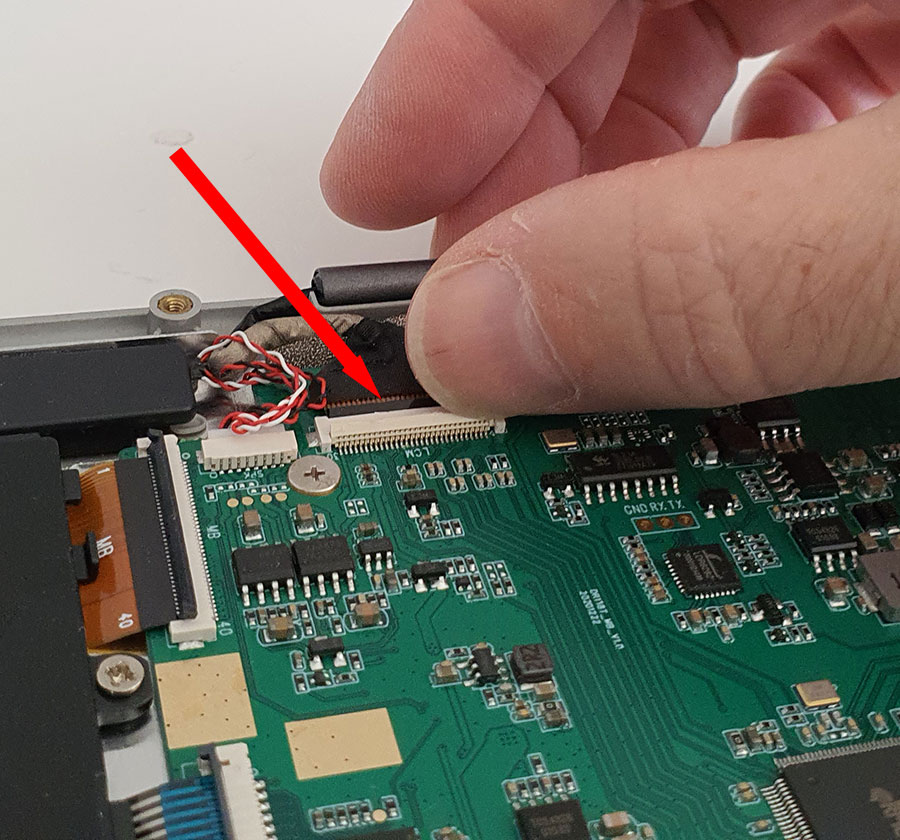
Unlock the latch of display by sliding the hooks as shown on the image.
-
Pull the ribbon cable out to detach it from the motherboard.
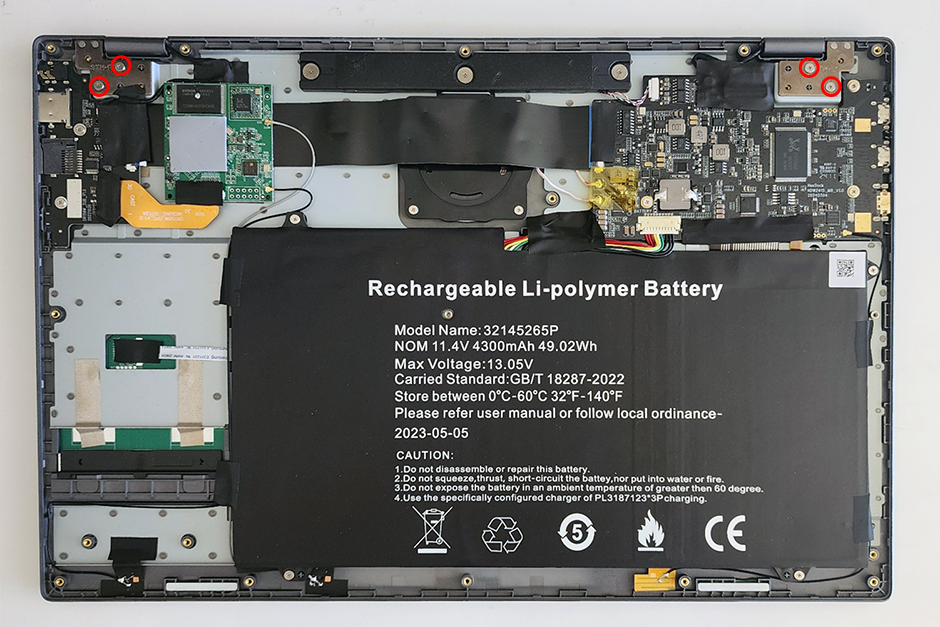
STEP 9 – REPLACING THE DISPLAY
-
Remove the 4 screws securing the lower case to the display.
-
Remove the display gently from the lower case
-
To reassemble your device, follow these instructions in reverse order.
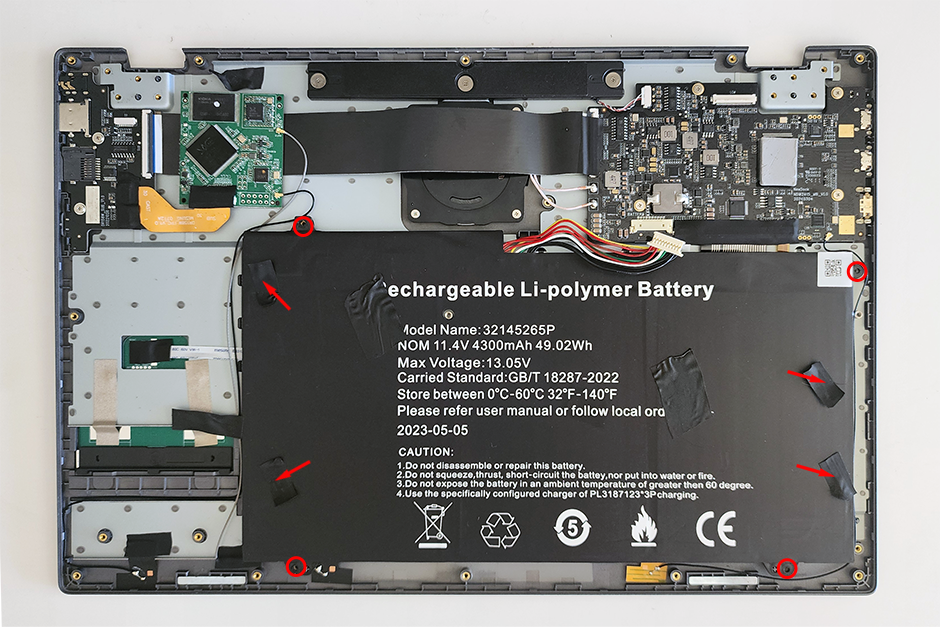
STEP 10
-
Remove the black tapes on the battery
-
Remove the 4 screws securing the battery to the lower case.
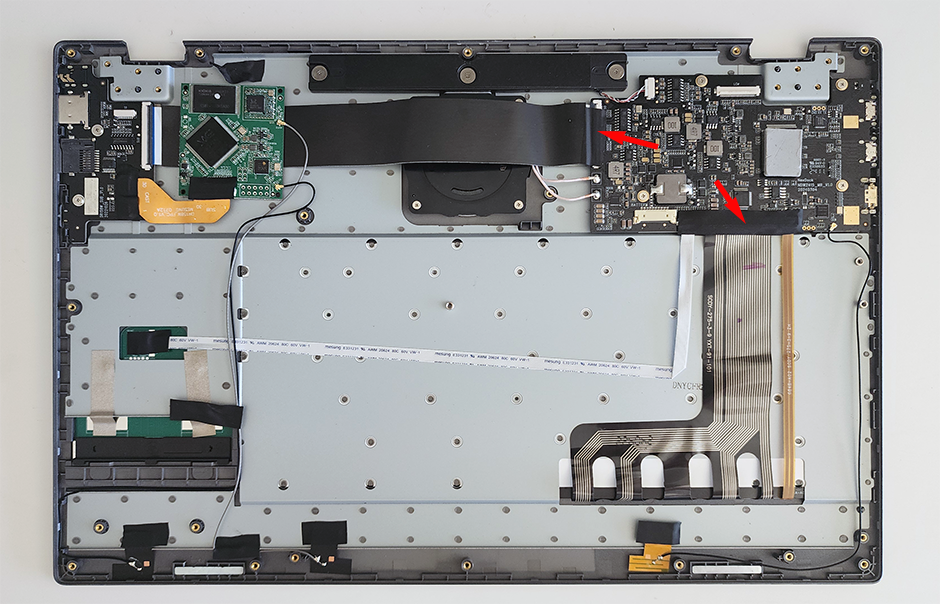
STEP 11
-
Remove the black tapes on the PCBA
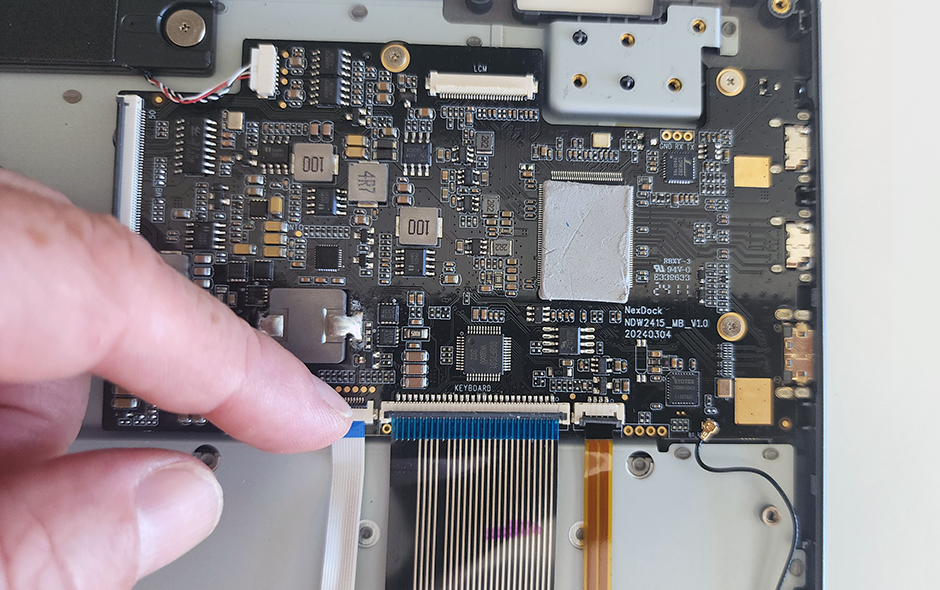
STEP 12
-
Unlock the latches on the ribbon cables, by sliding the hooks forward. on the reverse side compared to other latches. Unlock the latch by sliding the hooks backward as shown on the image.
-
Once latches are unlocked, pull the ribbon cables out to detach them from the motherboard.
STEP 13
-
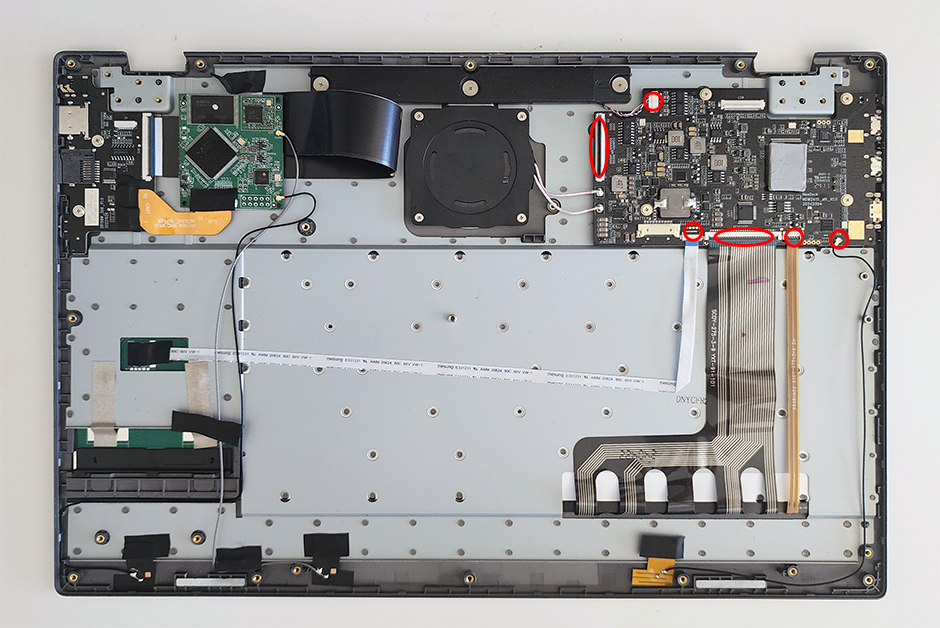
Unlock the latches on the 5 ribbon cables,
-
Remove the cable attaching the speakers to the motherboard
-
Remove the antenna cable
STEP 14
-
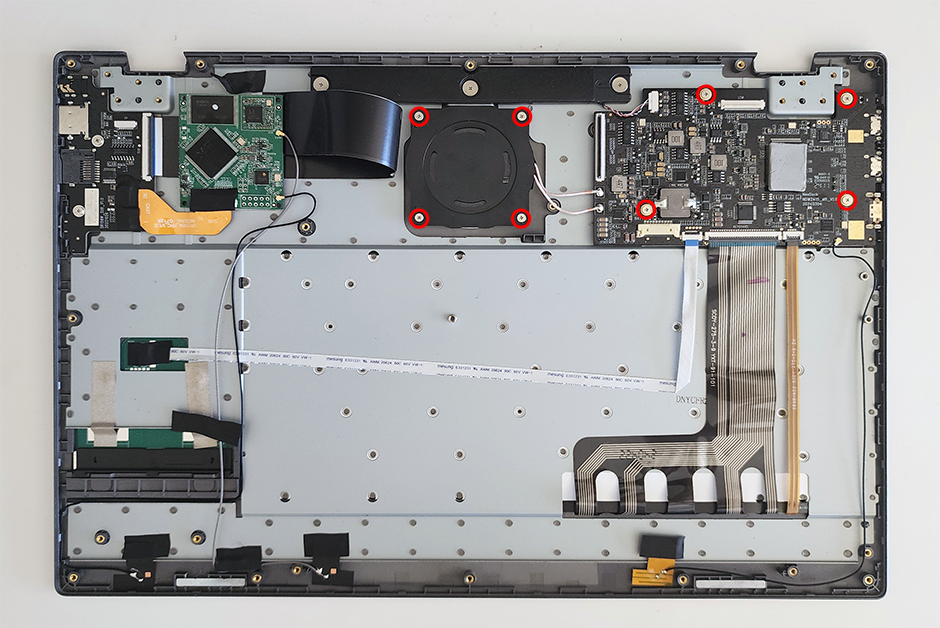
Remove the 4 screws securing the PCBA to the upper case
-
Remove the 4 screws securing the wireless charging assembly to the upper case
-
Lift the PCBA and the wireless charging assembly from its edges and remove them from the upper case together.