
NexDock 6 Support
Click on the device you intend to use with your NexDock to find a solution.
Important Information for Samsung DeX Users
The new NexDock supports a 1920 × 1200 resolution. To enable Samsung DeX to recognize higher‑resolution external displays, you’ll need to install Samsung’s Good Lock app.
Follow the steps below to set it up.

Open Google Play and search for the “Good Lock” app from Samsung.
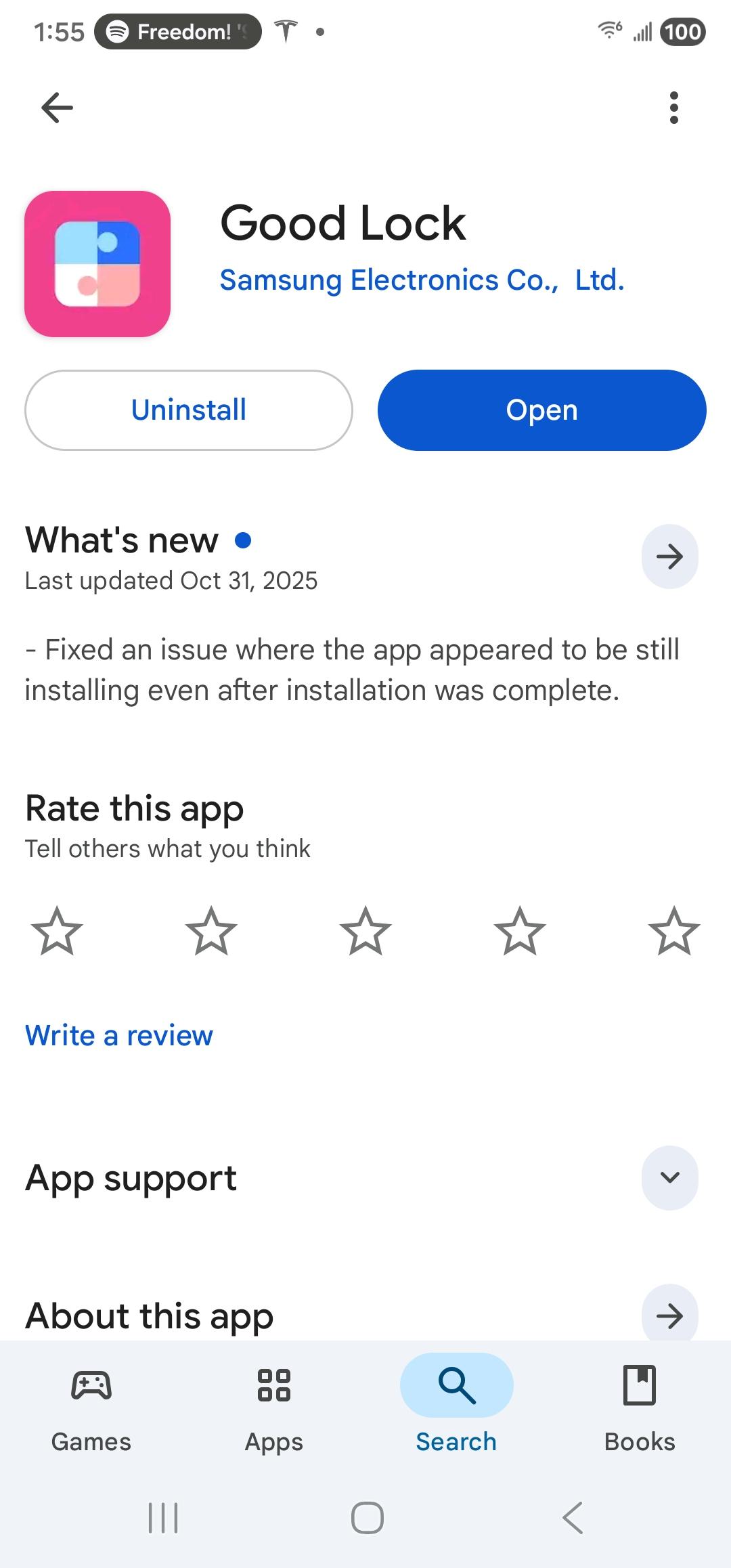

Once the Good Lock app is installed, open the MultiStar module.
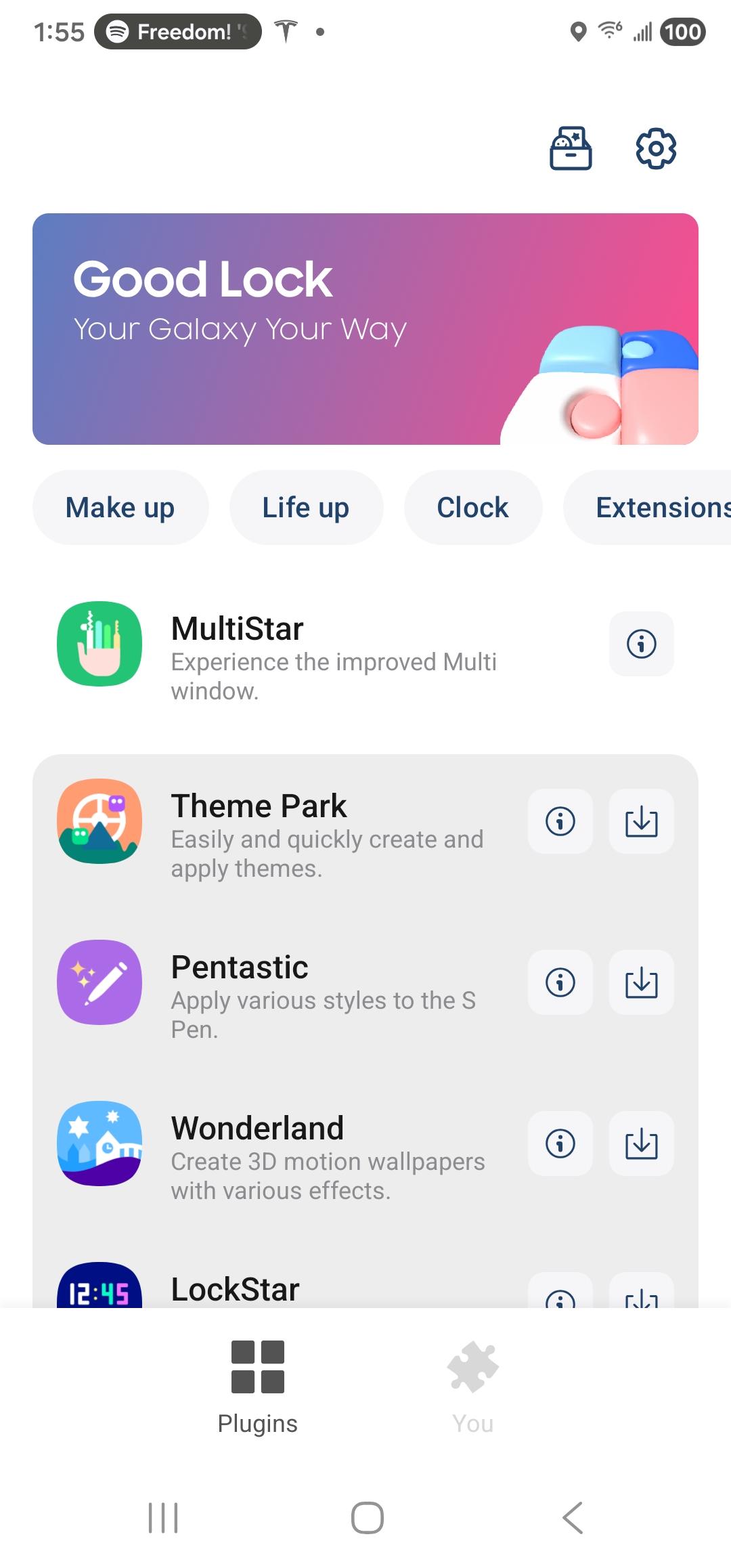

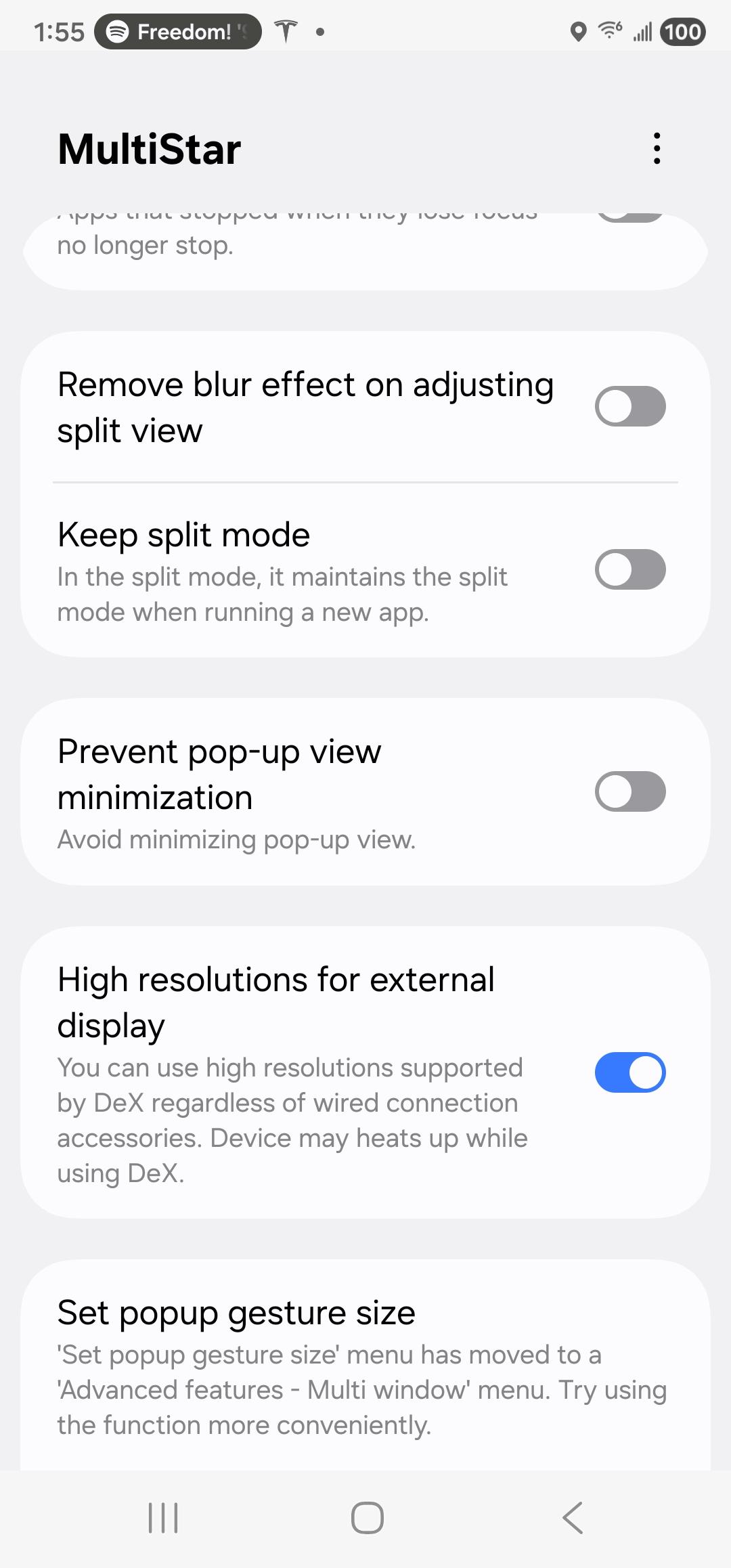
In the MultiStar module, enable the option “Higher Resolution for external display.”

Connect your phone to NexDock. Then go to Settings > Connected Devices > Samsung DeX and ensure the resolution is set to 1920 × 1200.
NOTE: You can also customize many other Samsung DeX options within these settings, such as adjusting touchpad speed or font size. For example, you can disable the NexDock keyboard if it appears on screen. To ensure audio works properly on NexDock, enable the option “Play sound on connected display.”
Common Questions
OSD Control Panel
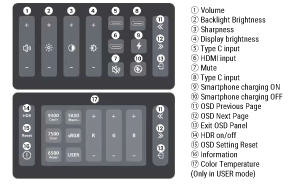
The OSD control panel lets you adjust the volume, screen brightness, contrast, sharpness, color temperature of the display and more.
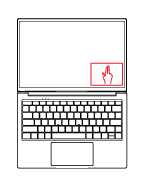
To open the OSD control panel swipe down with 2 fingers at the lower right corner of the touch screen.
Other settings are shown on below diagram:
Keyboard Function Keys
Function keys on the keyboard works only when a device is connected via USB-C input or bluetooth and when NexDock is not working in tablet mode.
To use the function keys hold down Fn key and press the Function key at the same time.
Below you can find the description of all the function keys:

Touchpad Sensitivity
Touchpad sensitivity, gestures and settings are determined by the device connected to NexDock.
As suggestions:
– Please check DeX settings to make changes on touchpad settings
– Some of our customers are using apps such as Key Mapper to disable gestures.
– Optionally, sticking a trackpad protection onto touchpad might provide better touchpad sensitivity.
– If a mouse is connected, touchpad can also be disabled anytime pressing Fn+Esc key.
USB-C Ports & Cables
Each USB-C port on NexDock has a specific purpose and cannot be used interchangeably.
1.) USB-C port closer to front edge works with smartphones. Other devices you can use with this USB-C input port are;
- USB-C Windows Laptops, Tablets, Chromebooks
- USB-C Macbooks, iPad Pro (touchpad do not work with Apple devices)
- Steam Deck, USB-C Gaming Handheld devices, Nintendo Switch
We provide USB-IF Certified (e-Marker) Gen2 USB C 3.1 Cable that supports 10Gbps data 4K Video and 100W power delivery with NexDock. You can use any other USB-C cable with similar specs.
2.) USB-C charging port on close to the display works only with PD chargers.
To charge NexDock we provide USB-C PD Charger with 30W output power delivery and you can use any other charger with similar specs.
Smartphone Connection
If you cannot connect your smartphone to NexDock, make sure your smartphone is connected to the correct USB-C input port. NexDock works only if your phone supports video output over USB-C port.
Please check if your smartphone is supported here
Charging & Battery Charge Level
To charge NexDock we provide USB-C PD Charger with upto 30W output power delivery and you can use any other charger with similar specs.
If a device is connected to NexDock you can check the battery charge level at anytime by pressing function key and battery icon on the keyboard or opening OSD control on the touchscreen
If no device is connected, NexDock goes to sleep mode in 300 seconds.
Please note that the new battery is only able to achieve best performance after two or three full charge and discharge cycles.